
Device and Video
Device and video control commands are sent through Command WS. Video WS is reserved for output frames.
Recommended flow:
device.list -> device.get -> device.open -> video.start -> connect Video WS -> video.stop or device.close1. List Devices
{
  "request_id": "req-device-list-001",
  "method": "device.list",
  "params": {}
}
The response contains devices and count. Each device includes device_id, model, display_name, vid, pid, status, authorized, and supports_video.
2. Get Device Detail
{
  "request_id": "req-device-get-001",
  "method": "device.get",
  "params": {
    "device_id": "mock-device-01"
  }
}
Device detail returns preview resolutions:
{
  "width": 1280,
  "height": 720,
  "real_width": 1280,
  "real_height": 720,
  "fps": 15,
  "pixel_format": "mjpeg",
  "is_default": true
}
3. Open a Device
{
  "request_id": "req-device-open-001",
  "method": "device.open",
  "params": {
    "device_id": "mock-device-01",
    "width": 1280,
    "height": 720,
    "fps": 15,
    "pixel_format": "mjpeg"
  }
}
A successful response returns opened: true. video.start requires the device to be opened first.
4. Start Video
{
  "request_id": "req-video-start-001",
  "method": "video.start",
  "params": {
    "device_id": "mock-device-01",
    "width": 1280,
    "height": 720,
    "fps": 15,
    "pixel_format": "mjpeg"
  }
}
Successful response:
{
  "request_id": "req-video-start-001",
  "code": 0,
  "message": "ok",
  "data": {
    "device_id": "mock-device-01",
    "stream_id": "stream-1",
    "session_token": "mock-session-token",
    "pixel_format": "mjpeg",
    "width": 1280,
    "height": 720,
    "fps": 15
  },
  "ts": 1710000000
}
Use session_token and stream_id to connect the default Video WSS endpoint:
wss://sdk-runtime.localhost:18091?session_token=mock-session-token&stream_id=stream-15. Render Video Frames
Video WS does not put “metadata + image” into one WebSocket message. Instead, each frame is sent as two consecutive messages:
- Text message: a JSON event named
stream.frame_meta, describing the next image frame. - Binary message: the image bytes for the same frame. The recommended
pixel_formatis currentlymjpeg, so the binary payload is one JPEG image.
The runtime follows this order: send the stream.frame_meta text event first, then send the binary frame. The binary message itself does not contain JSON or stream_id; clients should pair it with the most recently received stream.frame_meta.
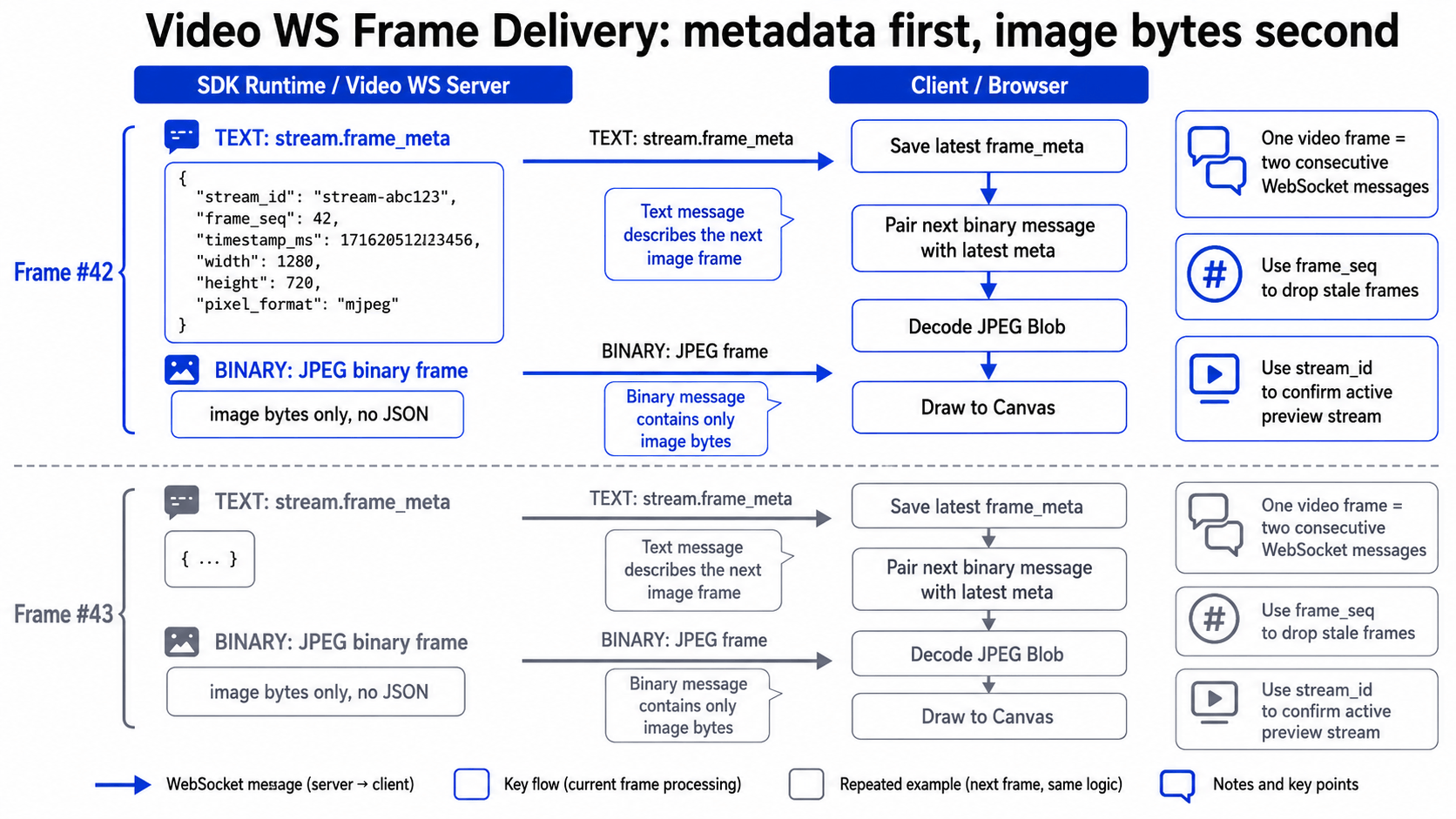
stream.frame_meta example:
{
  "event": "stream.frame_meta",
  "code": 0,
  "message": "ok",
  "payload": {
    "device_id": "mock-device-01",
    "stream_id": "stream-1",
    "frame_seq": 1,
    "timestamp_ms": 1710000000000,
    "width": 1280,
    "height": 720,
    "pixel_format": "mjpeg"
  },
  "ts": 1710000000
}
A client can handle the stream like this:
socket.binaryType = 'arraybuffer'

let latestMeta: FrameMeta | null = null

socket.onmessage = async (event) => {
  if (typeof event.data === 'string') {
    const message = JSON.parse(event.data)
    if (message.event === 'stream.frame_meta') {
      latestMeta = message.payload
    }
    return
  }

  // This is the image payload described by the previous stream.frame_meta event.
  const bytes = event.data as ArrayBuffer
  const blob = new Blob([bytes], { type: 'image/jpeg' })
  const bitmap = await createImageBitmap(blob)
  canvasContext.drawImage(bitmap, 0, 0, latestMeta?.width ?? bitmap.width, latestMeta?.height ?? bitmap.height)
  bitmap.close()
}
stream.frame_meta is mainly for validation and rendering support: use stream_id to confirm the frame belongs to the active preview stream, frame_seq to drop stale frames, width / height to size the Canvas, and pixel_format to choose the decoding path. When realtime detection is enabled, the payload may also include detected_rects and detected_rects_source for drawing detection boxes on top of the frame.
Clients should wrap MJPEG binary frames in an image/jpeg Blob, prefer createImageBitmap for decoding, and draw the decoded image to Canvas with drawImage. If createImageBitmap is unavailable, fall back to Image plus URL.createObjectURL. Use a latest-frame-wins strategy to avoid latency buildup when decoding or drawing is slower than the input frame rate.
6. Stop Video or Close Device
Stop only the active video stream:
{
  "request_id": "req-video-stop-001",
  "method": "video.stop",
  "params": {
    "device_id": "mock-device-01"
  }
}
Release the device:
{
  "request_id": "req-device-close-001",
  "method": "device.close",
  "params": {
    "device_id": "mock-device-01"
  }
}
device.close automatically stops the active video stream owned by the current connection and releases the device handle. Prefer device.close when switching devices, changing preview resolution, or leaving the preview page.
7. Handle Device Removal Events
If an opened device is unplugged or becomes unavailable, Command WS pushes device.removed:
{
  "event": "device.removed",
  "code": 0,
  "message": "ok",
  "payload": {
    "device_id": "mock-device-01",
    "reason": "hotplug_removed",
    "was_opened": true,
    "was_streaming": true,
    "ts_ms": 1710000000000
  },
  "ts": 1710000000
}
After receiving it, stop preview rendering, clear the current device and stream state, and call device.list again to refresh available devices.